
In this last iteration, new enhancements and fixes were completed to improve your Production Scheduling experience!
What got enhanced?
Some new and exciting enhancements include:
- An improvement on the Manage Data page, where users can now use excel files (.xls, .xlsx) to import items and work orders into Production Scheduling. Please note that the import file has a limit of 10,000 rows.
- Also, on the Manage Data page, users can now download an empty import template for items and work orders.
- The Work order filters panel was also enhanced, where a new filter toggle called “Show work orders with missing data” has been added. This toggle now enables users to show and/or hide work orders in the work orders list that have incomplete information (e.g. 0 expected quantity or 0 production rate). By default, this toggle will be turned off, which means work orders with missing data will be hidden in the work orders list. Please note that help text will appear when users hover their cursor over the question mark icon beside this toggle. See image below.

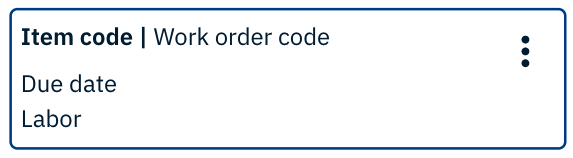
- A new layout setting has been developed to make it easier for users to identify work blocks on the schedule by item code. Users now have the option to display the item code on work blocks in place of the item description or work order description. Please reach out to your Nulogy CSM (Customer Success Manager) or the Global Support team should you want to display item codes on work blocks. See image below.
What got fixed?
- An animation issue was fixed in this iteration. This issue specifically occurred when users were scheduling a work order by dragging it from the work orders list and placing it on the schedule. When this happened, a preview of the work order card was shown instead of the work block.
Comments
0 comments
Please sign in to leave a comment.