
Article code: PSHDC15
Tags: Filters, Work Order Card, Sidebar
Answer
In Production Scheduling, there is a Work Order Filters panel that provides an extensive amount of search filters that you can use to search for information among work orders and items. You can access this by clicking on “Edit Filters” at the top of the work orders list. See image below.
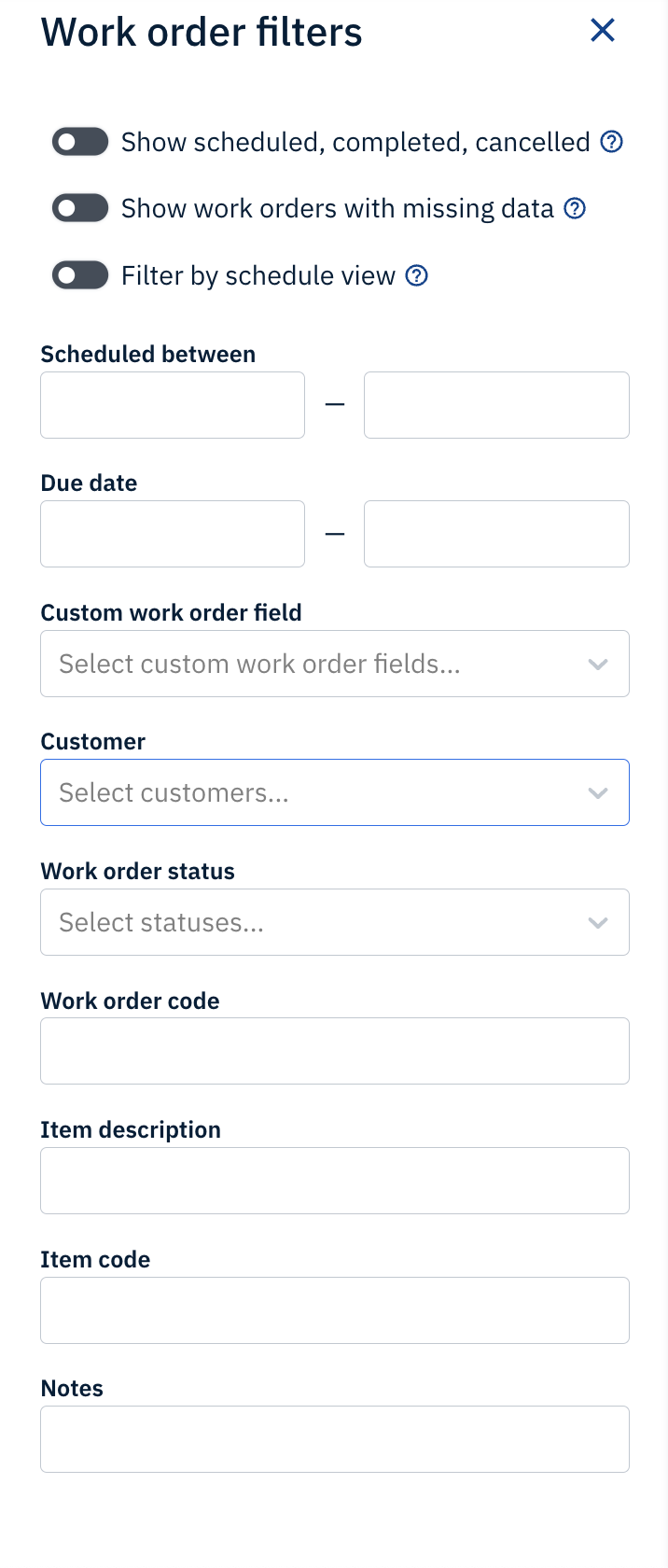
Fig. 1: Image of all the available filters in the Work Order Filters panel
Understanding each filter in the panel
Below is a description of all the available filters in the Work Order Filters panel:
- Show Scheduled, Completed & Cancelled: This toggle is used to show or hide work orders that have scheduled production, completed all expected production, or has production that has been cancelled in the work orders list. This toggle is useful when you want to focus on scheduling work orders that have leftover production. By default, this toggle is turned off, which means that the work orders list will only display work orders that you have not scheduled production for or work orders that have remaining units to be scheduled on the work order.
- Show Work Orders with Missing Data: This toggle is used to show or hide work orders that have missing information and cannot be scheduled. Examples of missing information could be the expected quantity on the work order being 0 or the production rate on the item being 0. This toggle is useful when trying to identify work orders that need to be updated before being scheduled. By default, this toggle is turned off, which means that the work orders list will only display works orders that have all the information required to be scheduled.
- Filter by Schedule View: This toggle is used to show work orders in the work orders list only if they are scheduled and currently visible on the schedule. Please note that when this toggle is selected, you will not be able to use the Scheduled Between filter.
For example, you have 5 work orders in the work orders list. You have scheduled production for 3 work orders for today and 2 for tomorrow. Let’s assume that you have the 1 day view selected on the schedule. When you turn on this toggle, you will see the 3 work orders that you have scheduled for today. If you change the date on the schedule to tomorrow, then you will see 2 work orders in the work orders list. - Scheduled Between: This filter is used to show work orders that have been scheduled between two specific dates, after a specific date, or before a specific date. Please note that you do not need to specify both dates to use this filter.
To use this filter, use the drop-down date picker to specify the date or date range. To remove dates, highlight the date(s) and then click the Delete button on your keyboard. - Due Date: This filter is used to show work orders that are due between two specific dates, after a specific date or before a specific date. Please note that due dates are created from values that you have entered in the “Due Date” column of the work order CSV import file.
To use this filter, use the drop-down date picker to specify the date or date range. Please note that you do not need to specify both dates. To remove dates, highlight the date(s) and then click the Delete button on your keyboard. - Custom Work Order Field: This filter is used to show work orders that have a custom work order field applied. Please note that custom work order fields are created from values that you have entered in the “Custom Work Order field” column of the work order CSV import file.
To use this filter, select one or multiple custom work order fields from the drop-down menu. To remove specific custom work order fields from this filter, click on the X of each custom work order field. You can also click on the X at the end of the filter to remove all custom work order fields. - Customer: This filter is used to show work orders that have the same customer. Please note that customers are created from values that you have entered in the “Customer Name” column of the work order CSV import file.
To use this filter, select one or multiple customers from the drop-down menu. To remove specific customers from this filter, click on the X of each customer. You can also click on the X at the end of the filter to remove all customers. - Work Order Status: This filter is used to show work orders that have a specific work order status applied to it. Please note that work order statuses are created from values that you have entered in the “Status” column of the work order CSV import file.
To use this filter, select one or multiple work order statuses from the drop-down menu. To remove specific work order statuses from this filter, click on the X of each work order status. You can also click on the X at the end of the filter to remove all work order statuses. - Work Order Code: This field is used to search for keywords that are used in the Work Order Code field. Please note that work order codes are created from values that you have entered in the “Project Code” column of the work order CSV import file.
To use this filter, enter keywords that you think are used in the Work Order Code field. To remove keywords from this filter, highlight the words and then click the Delete button on your keyboard. - Item Description: This field is used to search for keywords that are used in the Item Description field. Please note that item descriptions are created from values that you have entered in the “Description” column of the item CSV import file.
To use this filter, enter keywords that you think are used in the Item Description field. To remove keywords from this filter, highlight the words and then click the Delete button on your keyboard. - Item Code: This field is used to search for keywords that are used in the Item Code field. Please note that item codes are created from values that you have entered in the “Item Code” column of the item CSV import file.
To use this filter, enter keywords that you think are used in the Item Code field. To remove keywords from this filter, highlight the words and then click the Delete button on your keyboard. - Notes: This field is used to search for keywords that are used in the Notes field. Please be aware that you can only add notes to work orders while using Production Scheduling and not through importing a CSV file.
To use this filter, enter keywords that you think are used in the Notes field. To remove keywords from this filter, highlight the words and then click the Delete button on your keyboard.
Related HelpDesk Articles:
- How do I import items in Production Scheduling?
- How do I import work orders in Production Scheduling?
- How do I use the search filter in the work orders list?
- How do I hide cancelled work orders in Production Scheduling?
- How do I show work orders that have scheduled production in Production Scheduling?
Comments
0 comments
Please sign in to leave a comment.