
Article code: PSHDD12
Tags: Scheduling Work Orders, Split shift, Work Order Block, Shift
Answer
In Production Scheduling, you can split a work block that has production scheduled across multiple work shifts. Splitting a work block across shifts will automatically split the original work block into smaller work blocks that start and end based on the duration of the work shift.
For instance, you have scheduled production for Work Order 1 that lasts the entire day, spanning across Shift 1 (12AM-8AM), Shift 2 (8AM-4PM), and Shift 3 (4PM-12AM). By scheduling this work block across three work shifts, you may choose to split production into three separate work blocks based on the length of the work shifts. See image below.
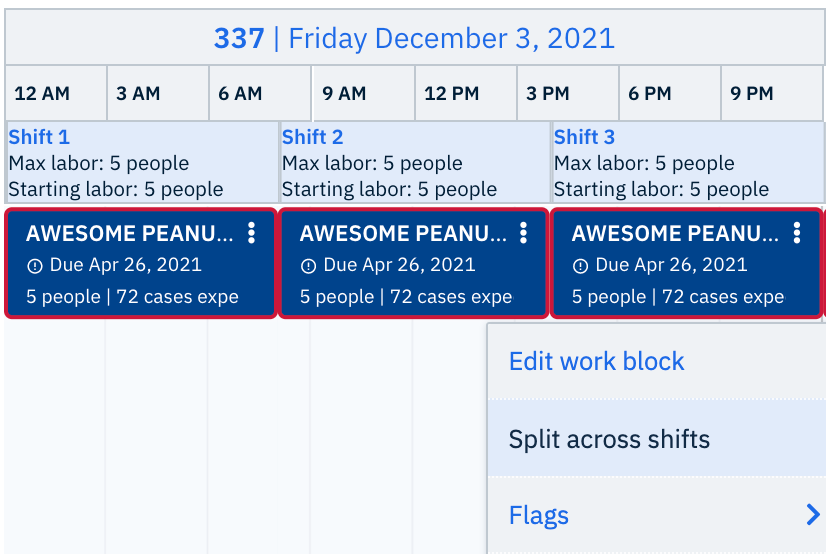
Fig. 1: Work block where production has been split across three work shifts.
To split a work block across shifts:
- Schedule production for a Work Order by dragging it from the work orders list
- Right-click on the work block that has scheduled production
- Select Split across shifts
Result: You have successfully split this work block to start and end based on the duration of work shifts at your organization.
Exceptions to splitting work blocks across shifts
There are some exceptions to splitting work blocks across shifts. You cannot split work blocks if the following situations occur:
- You have added teardown time to a work block
- To resolve this: remove teardown time, split the work block across shifts, and then add teardown time to the end of the last work block.
- You have locked a work block into place, preventing others from moving it to another position in the schedule.
- To resolve this: unlock the work block, schedule production for a new work order, split the recently scheduled work block across shifts, drag the previously locked work block back to its original position, and then lock the work blocks into place.
- You have scheduled a downtime block and locked it into place, preventing others from moving it (e.g. scheduling downtime on the weekends to represent paused work).
- To resolve this: unlock the downtime block, schedule production for a new work order, split the recently scheduled work block across shifts, drag the previously locked downtime block back to its original position, and then lock the downtime block into place.
- You have set up work shifts that overlap (e.g. there is a 1 hour overlap between Shift 1 and Shift 2)
- To resolve this: edit the duration of the work shifts that overlap each other and then split the work block across shifts.
Related HelpDesk Articles:
- How do I schedule work orders in Production Scheduling?
- Which scheduling method should I use to schedule remaining units on a work order in Production Scheduling?
- Which scheduling method should I use if I want to schedule a work order to fill up an entire shift in Production Scheduling?
- Why can't I schedule a work order in Production Scheduling?
- How do I remove time gaps from the schedule in Production Scheduling?
Comments
0 comments
Please sign in to leave a comment.